Construction operations guide
COI Exception Log Template: Track Missing Evidence and Next Actions
A practical issue register with a CSV download, clear owners and a traceable closing record.
By SubDoc Editorial Team · Published October 27, 2026 · Updated October 27, 2026
A separate record for each unresolved issue
A COI exception log is a working list of insurance-document issues that still need evidence, review or a recorded decision. Use one row per issue, with a vendor, project, requirement, owner and next action. A vendor with three unresolved items needs three issue records, rather than one overloaded notes cell.
The template below is an administrative starting point. In this guide, “exception” means an unresolved item in your process. It does not mean a requirement has been waived, insurance exists or someone has authorized work or payment.
Download the COI exception log CSV. It contains a header and two clearly fictional example rows. Replace the examples before use. It has no formulas, reminders or approval automation.
When to use the log instead of your vendor tracker
Your vendor tracker answers who is on the roster and what evidence is held. The exception log answers what is still unresolved, who must act and what would close the issue. Keep the vendor identifier in both so the records can be connected without copying the full file into each row.
Use an issue record when a requested document is absent, a reviewer needs a clarification, replacement evidence is pending or a decision has conditions requiring follow-up. Routine completed records can stay in the main COI tracking spreadsheet. For a planned system change, follow the Excel-to-software migration guide.
Do not create duplicate issue rows for each reminder. Update the same open item and retain the correspondence in its evidence location. Create a new item when the requirement or factual issue is different.
What the CSV fields mean
| Field group | What to record |
|---|---|
| Issue and context | Issue ID, vendor ID, vendor name, project and requirement reference. |
| Observed problem | Date opened, factual issue description and document reference. |
| Work to do | Workflow status, action owner, next action and follow-up date. |
| Review and decision | Reviewer, decision reference, conditions and review-by date when applicable. |
| Closure | Resolution evidence reference, closed date and the person closing the administrative record. |
Use links or internal references to evidence held in your controlled document store. Keep sensitive personal details and full policy documents out of an ordinary shared log. Set access according to the information your organization puts in it.
1. Write the observation without declaring coverage
“Requested endorsement copy not received” identifies the missing evidence. “Vendor uninsured” makes a different assertion that may require an insurance professional's assessment. Use the narrow statement your records support and identify the requirement the reviewer is trying to resolve.
Texas's insurance regulator explains in its certificate FAQ that a certificate cannot change or extend the underlying policy, and that policy and endorsement copies may be provided. This is Texas guidance. Have your broker address the relevant policy and jurisdiction rather than treating an administrative status as a coverage determination.
For the initial document review, use your approved requirements and the ACORD 25 inspection checklist. Record the evidence you need to finish that review, not a generic instruction to “fix insurance.”
2. Assign the next action to one owner
Choose the person responsible for moving the issue forward. That may be the coordinator requesting a document, the reviewer assessing a response or the project lead obtaining an authorized instruction. Copying several people on an email is not a substitute for naming the action owner.
Write the next action as a specific task, such as “Request the endorsement copy from the verified agency contact” or “Ask the reviewer to assess the replacement evidence.” Give it a follow-up date. Use timing appropriate to the project's work and risk process; the template does not prescribe a universal deadline.
Suggested workflow labels are Needs evidence, Ready for review, Decision recorded and Closed. These describe work in the queue. Keep any insurance or business decision in its own referenced record.
3. Use the queue to surface work
The SubDoc demo issue panel separates sample missing, pending and expiring items. It can illustrate the starting point for an exception review. The screenshot is not a claim that an email was sent, a renewal was obtained or a requirement was approved.
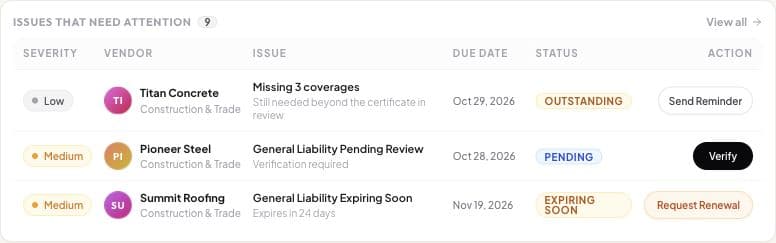
When a team member opens an item, the useful handoff includes the requirement, current evidence, action owner and next update. If your software does not store all those details together, keep a controlled register linked to the relevant record.
4. Record decisions and conditions separately
If an authorized person makes a decision, link to it and record the decision-maker and date. Put any conditions and review-by date in dedicated fields. A message saying “okay for now” is difficult to act on unless the scope, owner and next review are clear.
The log does not grant a coordinator authority to waive a contract requirement, approve site access or hold a payment. Escalate those questions through your organization's insurance, project and legal process. Keep the administrative next action separate from the business instruction.
Use the conditions field only to summarize the referenced decision; do not invent conditions on behalf of the decision-maker. If the decision remains unclear, keep the item open and request clarification.
Worked example: receipt is not closure
In a fictional example, Example Mechanical has a requested document outstanding for Project North. The coordinator creates EX-001, names an owner and requests the missing evidence. When a file arrives, the status moves to Ready for review. The row stays open until the reviewer records the outcome and identifies the evidence supporting closure.
A second row, EX-002, might concern a different vendor's renewal evidence. Receiving a new file does not resolve an earlier question about the dates by itself. The reviewer must identify which issue the response answers. If your team discovers an expiration during active work, use the separate mid-project expiration response guide.
These examples explain the register's mechanics. They are not real vendor records, coverage findings or approved contract exceptions.
Close the issue with a traceable reason
Record the resolution reference, closure date and person closing the row. Keep the original issue description so a later reviewer can understand why it was opened. If the item was duplicated or entered by mistake, record that reason instead of pretending the requested evidence was accepted.
As a suggested review routine, sort open items by follow-up date, identify overdue actions and check whether recorded decisions have conditions coming due. Choose the review cadence with the team responsible for the work. The CSV does not send reminders or calculate compliance.
Explore the SubDoc demo for sample compliance views. The downloadable log remains a separate, editable administrative template; it is not a SubDoc import file.