Most construction companies run on software and digital files far more than they used to. Estimating spreadsheets, drawing sets, change orders, subcontractor insurance certificates, and client invoices are all stored on office computers, laptops, and cloud drives. When those systems work as expected, nobody thinks twice about them. When a hard drive fails during bid week or an email account gets compromised, projects can stall quickly and cost real money.
Small to mid-size builders, general contractors, and trade specialists rarely have dedicated IT staff. The responsibility usually falls on the business owner, a project manager, or an office administrator who already has plenty of other work to do. You do not need an enterprise technology budget to protect your business, but you do need a few clear habits and basic precautions.
1. Set Up Backups You Can Actually Restore
Construction projects generate thousands of files over months or years. If a computer gets infected with ransomware or an external hard drive gets dropped in a site trailer, losing access to current plan revisions or historical estimating databases can put a serious dent in your business.
A good approach is the standard 3-2-1 backup habit:
- Keep three copies of your data: Your main working files, plus two backups.
- Use two different storage locations: For instance, a local network drive in the office for quick everyday access, and a cloud backup service.
- Keep one backup off-site and protected: Use a cloud backup service that keeps historical versions and prevents files from being overwritten or deleted right away. That way, if a ransomware attack locks the office network, your older backup files remain intact.
Backups are only useful if they work when you need them. Pick a quiet afternoon every few months to test restoring a folder from an older project. Check that you can open the drawings, view the spreadsheet formulas, and read the contract PDFs without errors. Finding out your backup failed during a real emergency is an expensive lesson.
2. Protect Laptops, Tablets, and Job-Site Devices
Construction sites are tough on electronics. Laptops used in job trailers deal with drywall dust, vibration from heavy equipment, and hot summer temperatures. Field tablets carried around by superintendents get dropped on concrete or left in work trucks.
Physical Care and Tough Cases
Consumer-grade tablets and laptops will not last long on an active site without protection. Put field iPads and tablets in heavy-duty, drop-rated cases with hand straps and screen protectors. Keep devices out of direct sunlight on roofs, and avoid leaving them on vehicle dashboards where heat can ruin batteries and cause thermal shutdowns.
Turn on Device Encryption
Laptops and tablets are frequently stolen from work vehicles. If a company laptop is stolen, full-disk encryption prevents someone from simply pulling out the storage drive and copying client contracts, employee records, or bidding files.
- Windows users should turn on BitLocker (available in Windows Pro and Enterprise).
- Mac users should turn on FileVault in system settings.
- Require a strong password or PIN to unlock every phone, tablet, and laptop.
Set Up Remote Wipe
If your business uses Microsoft 365 or Google Workspace, use their built-in device management settings. This lets you remotely erase work data from a phone or tablet if an employee loses it on a job site.
3. Guard Against Invoice and Payment Fraud
Construction companies can be attractive targets for email payment scams because projects involve large payments between owners, contractors, subcontractors, and suppliers.
How the Scam Happens
A scammer gains access to a subcontractor's email account through a phishing link. They watch project email threads quietly to learn how progress billings work and when invoices are sent. When the subcontractor submits a real monthly invoice, the scammer intercepts the message, changes the bank account details on the PDF invoice, and emails it from the real mailbox. If the office staff pays without double-checking, the money goes straight to the criminal.
Simple Verification Rules That Help Prevent Losses
- Never change bank details based on an email alone: Treat any email asking for payment to be sent to a new account number as suspicious, even if it looks like it came from a subcontractor you have worked with for years.
- Call to confirm using a known number: Pick up the phone and call the subcontractor's project manager or owner. Use the phone number from your original signed contract, not the number printed on the new invoice.
- Require two people to approve large payments: Set up your banking system so that payments over a certain amount require approval from two different managers before funds leave the account.
4. Use Multi-Factor Authentication and Password Managers
Most account break-ins happen because people reuse simple passwords across multiple websites. If an employee uses the same password for personal accounts and work email, a data breach on an unrelated website can give attackers access to your company inbox.
Turn on Multi-Factor Authentication (MFA)
Multi-factor authentication adds a second step when signing in, such as approving a prompt on a phone app. Turn on MFA for every service your business uses, especially:
- Company email (Microsoft 365 or Google Workspace)
- Accounting and payroll (QuickBooks, Xero, Sage)
- Cloud storage and project management platforms (Dropbox, OneDrive, Procore, Buildertrend)
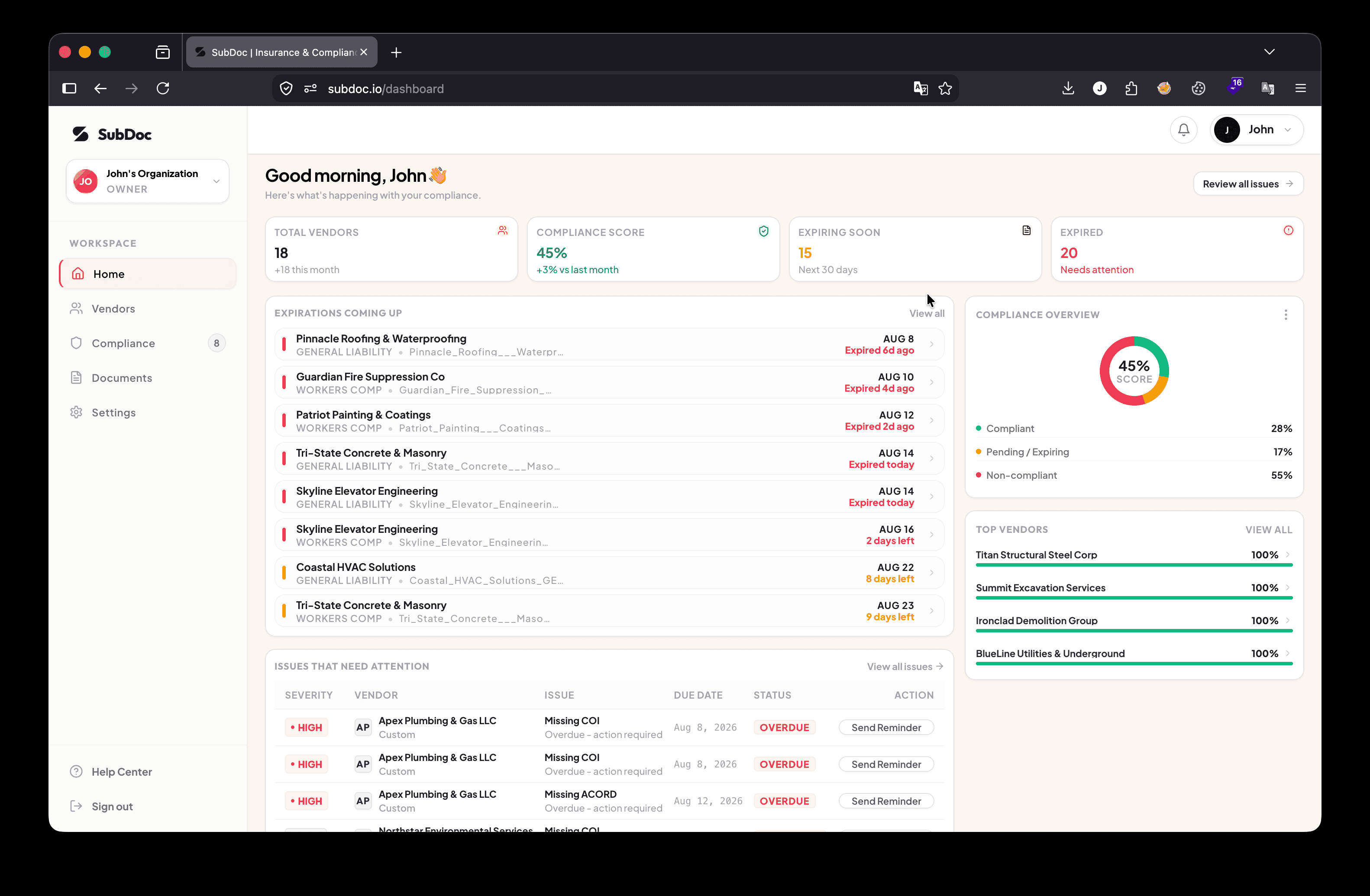
- Subcontractor compliance and COI tracking software (SubDoc) — especially critical since these systems hold vendor insurance certificates
Even if someone guesses or steals a password, MFA makes it much harder for them to log into the account.
Use a Password Manager
Writing passwords on whiteboards in the site office or saving them in a shared spreadsheet is risky. A password manager like 1Password or Bitwarden allows your team to generate strong, unique passwords for supplier portals and takeoff software. You can share access to specific accounts with team members without having to tell them the master password, and revoke access when someone leaves the company.
5. Secure Job Trailer Wi-Fi and Field Internet
Site trailers often rely on cellular Wi-Fi routers that get shared among project managers, trade contractors, delivery drivers, and inspectors. Sharing an unmanaged network means other people on site could potentially see shared folders or office printers.
- Set up a guest network: Most modern routers allow you to create two separate Wi-Fi names. Put office computers and backup drives on the main private network, and give visiting subcontractors and inspectors access to the guest network.
- Use a VPN on public Wi-Fi: When project managers work from coffee shops, airports, or client offices, require them to use a secure Virtual Private Network (VPN) or a mobile phone hotspot instead of open, unsecured Wi-Fi networks.
6. Manage Document Access and Subcontractor Records
Not everyone in a construction company needs access to every file. Organizing your folders and permissions by role keeps files tidy and helps prevent accidental changes or deletions.
- Keep sensitive files restricted: Only company owners and accounting staff should have access to bank statements, payroll information, and profit margins. Project managers need access to project contracts, submittals, RFI logs, and change orders. Field crews usually only need read access to current drawing sets and safety logs.
- Track subcontractor compliance: Keep subcontractor Certificates of Insurance (COIs), endorsements, and signed lien waivers organized in a central system. When an insurance policy expires without anyone noticing, your business can get stuck with unexpected liability or penalties during an annual workers' compensation audit.
- Close accounts when workers leave: When a seasonal worker, project engineer, or contract estimator finishes their work, remove their access to company email, cloud drives, and project portals on the same day.
7. Keep Workstations Running and Handle Hardware Problems
Computers used for estimating and CAD work carry heavy workloads. In construction offices and site trailers, airborne dust and unstable power from temporary site generators can cause hardware to wear out faster than normal.
A few basic maintenance habits help keep machines running:
- Clean out dust regularly: Dust buildup inside desktop cases and laptop vents makes fans work harder and causes computers to overheat. Blow out vents with canned air twice a year.
- Use battery backups in site trailers: Power from job-site generators often fluctuates. Plug computers and networking gear into an uninterruptible power supply (UPS) with battery backup to smooth out voltage drops and prevent sudden shutdowns.
When a critical laptop or estimation computer develops hardware faults, such as a failing drive, a broken screen, or sudden crashes, trying to fix it yourself can lead to further damage or lost data. Working with an experienced technician for computer repair Auckland helps get your work computers diagnosed and repaired properly, so your team can get back to bidding and managing projects without losing momentum.
8. When to Consider Outside IT Support
As a construction company grows, handling tech problems in-house can start taking too much time away from running projects. If you find yourself spending hours troubleshooting printer problems, configuring laptops, or worrying about security updates, it may be time to partner with a managed IT support provider.
An outside IT partner can handle software updates, monitor your systems for security issues, set up new employee devices, and provide fast help when someone has a technical problem. That lets your team focus on estimating, building, and delivering projects for your clients.