Every year, construction accounting teams handle the same uncomfortable situation: a subcontractor's Certificate of Insurance expires mid-project, and the question lands on the AP team's desk. Do we hold the next progress payment? How exactly do we put it on hold in QuickBooks? What if the job site foreman is already expecting to pay the sub this Friday?
The stakes here go beyond just good administrative hygiene. During annual Workers' Compensation audits, insurance carriers review every dollar your company paid to subcontractors. If they find payments made during a period when the subcontractor's policy had lapsed, they reclassify that labor as uninsured and charge your company back-premiums, often at your own general labor rate, which can be significantly higher than a trade contractor's rate.
This guide walks through why payment holds matter legally, how to apply them step by step in QuickBooks, Sage, and Yardi, and how a modern compliance workflow prevents the situation from arising in the first place. A payment hold is one step in a wider response. For the full sequence, from confirming the lapse to pulling the crew and verifying the renewal, see our 7-step playbook for insurance that expires mid-project.
Why You Need Contractual Language Before Holding Payment
The single most important rule in construction payment holds is this: you cannot legally withhold a progress payment without a written contractual right to do so.
Almost every state has prompt payment statutes that define the maximum number of days a general contractor can hold a payment after receiving a proper pay application from a subcontractor. These statutes impose real penalties, including interest charges, and in some states, attorney's fees, on GCs who withhold payments without a defensible contractual basis.
Before implementing any payment hold workflow, your subcontract template must include language along the lines of:
If your current subcontract template does not include this type of clause, add it before rolling out any payment hold process. Your attorney should review the final wording to confirm compliance with the prompt payment rules in your operating states.
The Workers' Comp Audit Problem: What Back-Premiums Actually Cost
Most construction company owners understand vaguely that uninsured subcontractors create Workers' Comp exposure. Fewer understand exactly how the math works during an audit.
Here is the actual audit calculation your carrier uses:
Example Audit Scenario
You paid a masonry subcontractor $180,000 during the policy year. Their COI expired 3 months into the project, and you have no documentation of a renewed certificate covering the remaining 9 months of work.
Amount paid during non-compliant period: approximately $135,000 (9 of 12 months)
Your masonry workers' comp rate: $8.50 per $100 of payroll (a typical rate for masonry classification)
Back-premium charge: $135,000 × 8.5% = $11,475 in additional premium
This is a simplified illustrative example. Actual back-premiums vary by state, classification code, and carrier. Consult your insurance broker for your specific exposure calculation.
Multiply that scenario across 12 to 40 active trade subcontractors on a mid-size general contractor's roster, and the annual audit exposure from lapsed COIs routinely reaches five figures.
Audit Risk Summary by Exposure Type
Back-Premiums on Uninsured Labor
Your Workers' Comp insurer treats payments to subs without valid COIs as uninsured payroll and charges you back-premiums at your full labor rate. On a project where you paid $300,000 to an uninsured electrical sub, your premium surcharge can exceed $15,000 in a single audit cycle.
General Liability Audit Upcharges
GL carriers conduct similar audits. Payments to subcontractors without Additional Insured endorsements may be classified as uninsured operations, triggering supplemental GL premium charges.
Multi-Year Audit Windows
Workers' Comp audits typically look back 12 months. If you are missing COIs for work performed in the prior fiscal year, you cannot retroactively obtain valid certificates. The back-premium charge stands even if the subcontractor was fully insured, because you lack the documentation to prove it.
Uncontested Subrogation Exposure
If a subcontractor with a lapsed policy causes a bodily injury, and that sub had no Waiver of Subrogation on file, you lose your only contractual defense. Their carrier can sue you directly for full claim recovery.
Step-by-Step Payment Hold Workflows by Accounting System
The core workflow across all three major construction accounting platforms is the same: export a non-compliant vendor list from your compliance tool, then apply holds in your accounting software. Here is exactly how to do it in each system:
QuickBooks Online & Desktop
- 1Export SubDoc's non-compliant vendor list as a CSV from the payment holds dashboard.
- 2Open Vendors in QuickBooks. For each non-compliant sub, go to Edit Vendor and check the box to mark the vendor Inactive.
- 3Inactive vendors are hidden from bill payment runs. Existing open bills remain on file but cannot be paid until the vendor is reactivated.
- 4When the subcontractor uploads a renewed COI, reactivate the vendor in QuickBooks to restore payment eligibility.
- 5For QuickBooks Desktop users: apply a custom field (COI Expiration Date) to each vendor record and filter vendor payment lists by that field monthly.
Sage 100 & Sage 300
- 1Export SubDoc's non-compliant vendor list CSV from the payment holds dashboard.
- 2In Sage Accounts Payable, open each vendor record. Under the Main tab, change the Status field to Inactive.
- 3Inactive vendors are excluded from check runs and EFT payment batches until status is restored.
- 4For Sage 300 Enterprise: use the Vendor Activity report filtered by status to audit your active vendor pool before each payment cycle.
- 5When a renewed COI is uploaded and verified in SubDoc, manually update vendor status back to Active in Sage.
Yardi Voyager & Breeze
- 1Export SubDoc's non-compliant vendor list CSV and match vendor IDs against your Yardi vendor database.
- 2In Yardi, navigate to the vendor record and set the Inactive flag or adjust the Approval Status to On Hold.
- 3Yardi Voyager supports a Vendor Compliance module. If enabled, link your COI expiration data to the compliance checklist fields for automated payment gates.
- 4For Yardi Breeze: use the vendor notes field to log non-compliance and flag the vendor manually in payment approvals.
- 5Coordinate with your Yardi system admin to trigger the hold at the invoice approval stage rather than at the check run stage for tighter control.
How Modern Compliance Software Prevents Payment Holds From Happening
Manual payment holds are reactive. They happen after a policy has already lapsed, often after a subcontractor has already submitted an invoice and started expecting a check. The better operational goal is to prevent the lapse entirely so that holds are never needed.
This is where automated COI tracking software changes the daily workflow for accounting and project management teams:
1. Automated Renewal Notices at 60, 30, 15 & 7 Days
When a system continuously monitors policy expiration dates and sends automated renewal emails to both the subcontractor and their insurance broker well before the expiration date, the broker has enough time to renew coverage and upload the updated certificate before any lapse occurs. Most insurance renewals require 2 to 4 weeks of lead time for commercial coverage. A 60-day automated reminder gives brokers the runway they need.
2. Passwordless Broker Upload Magic Links
One of the most common reasons for coverage gaps is the subcontractor acting as a slow middleman between the general contractor and their insurance broker. Modern platforms send renewal notices directly to the insurance broker with a one-click secure upload link. The broker can upload the renewed ACORD 25 certificate directly without asking the subcontractor to relay documents back and forth.
3. Real-Time COI Status Feeds to Accounting
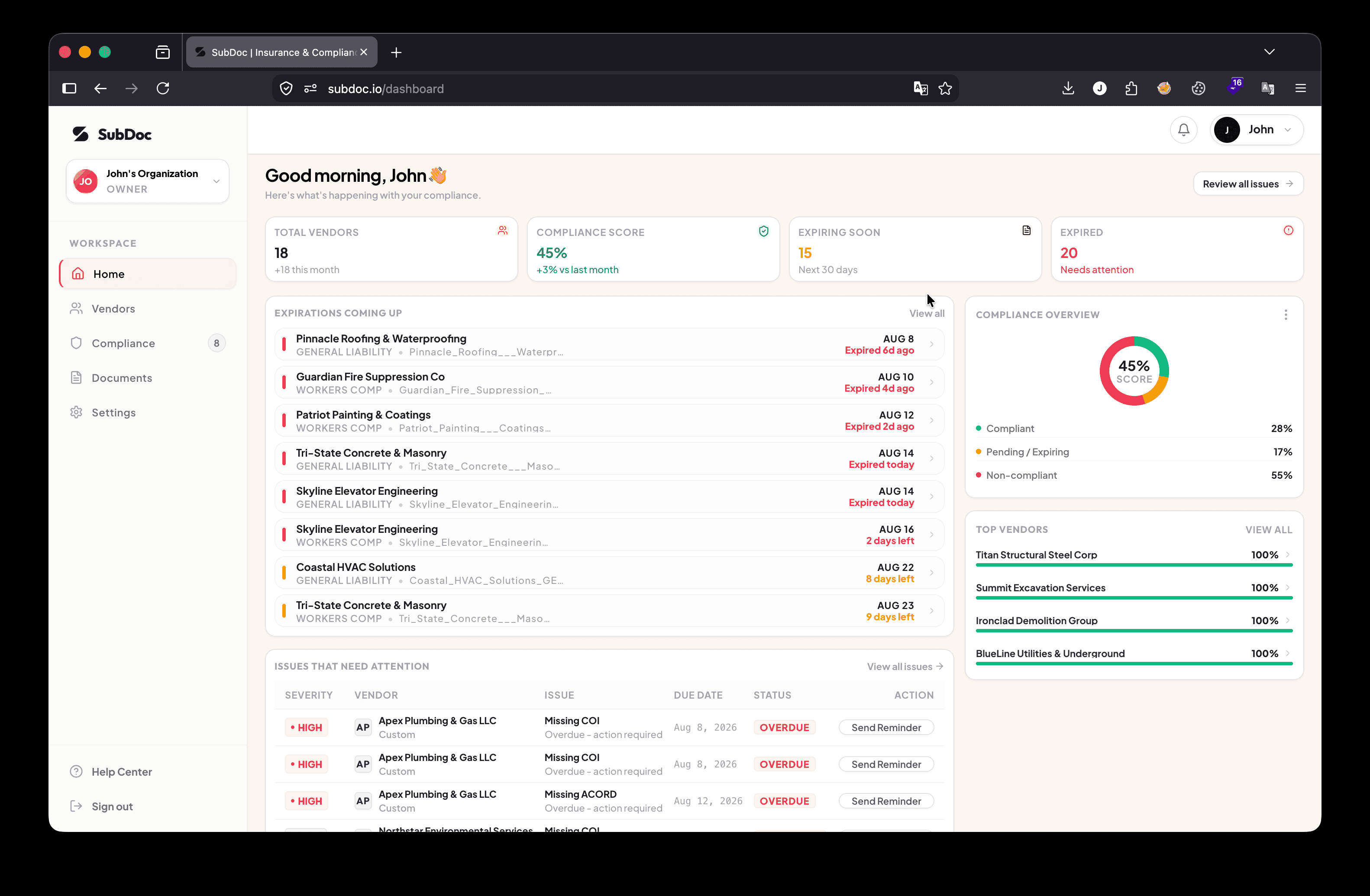
Rather than requiring accounting teams to manually check compliance status before each payment run, modern COI tracking tools generate a live dashboard of compliant versus non-compliant vendors. SubDoc's payment hold export produces a ready-to-use CSV file sorted by compliance status that accounting teams import into QuickBooks, Sage, or Yardi at the start of each payment cycle, removing the need for manual cross-checking.
SubDoc Payment Hold Export: What the CSV Contains
The Full Compliance-to-Payment Workflow: Step by Step
The strongest construction accounting teams run compliance as a proactive gate rather than a reactive scramble. Here is what the complete workflow looks like when automated compliance is connected to accounts payable:
Before awarding any scope of work, request COI via automated magic link. Block project start until all required policies (GL, Auto, WC, Umbrella) and endorsements (Additional Insured, Waiver of Subrogation) are on file.
Compliance software monitors all active policy expiration dates in the background. No manual calendar reminders or spreadsheet columns required.
Automated renewal request goes directly to the subcontractor's insurance broker with a one-click upload link. No subcontractor involvement needed.
If the broker has not uploaded the renewed certificate, a second and third automated reminder fires with the same upload link.
If a renewed COI is still not received, export the non-compliant vendor list and apply payment holds in QuickBooks, Sage, or Yardi using the step-by-step workflows above.
Once the renewed COI is received, parsed, and verified (within 5 seconds via AI OCR), reactivate the vendor in your accounting system and release the held payment.